Advisor and Advisor Alert
The Advisor is Pivot-RP's intelligent mapping tool which analyzes the information found in your profile and matches you with funding opportunities that you may not have found through simple searching. The more detailed your profile, the better the matches that the Advisor will provide.
Advisor alerts are automated emails of new funding opportunities that match your researcher profile and that you will receive once per week directly in your Unifr inbox.
To receive matches from the Pivot-RP Advisor, you must first have claimed your profile.
If you have activated Advisor Alerts but are not receiving any funding recommendations, it may be because too many filters are turned on (see below).
-
Where to access the Advisor recommendations
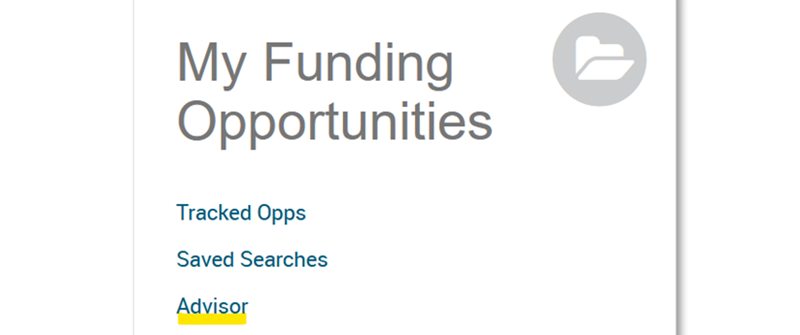
On the Pivot-RP homepage, under "my funding opportunities" click on "Advisor".
-
How to obtain relevant funding recommendations from the Advisor
Are you receiving Advisor Alerts but the suggested opportunities are far from your research interests? Here are a few steps you can take to improve the automated funding opportunities you get from Pivot-RP:
- Add keywords that match your research interests to your profile.
- Add your publications to your profile (by linking your ORCiD, or by manual import).
- Filter the Advisor Alert by Career stage to further narrow down your results (see below).
- Select filters on the Advisor page (see below).
See here how to edit your profile information (add keywords, add your publications, link your ORCiD).
-
How to activate or deactivate the Advisor Alert emails
By default the Advisor Alert emails are activated and are sent to your Unifr inbox once per week on Sundays.
To deactivate this option click on your name (top right corner) > My Preferences > Alerts tab and untick "Advisor Alert Email".
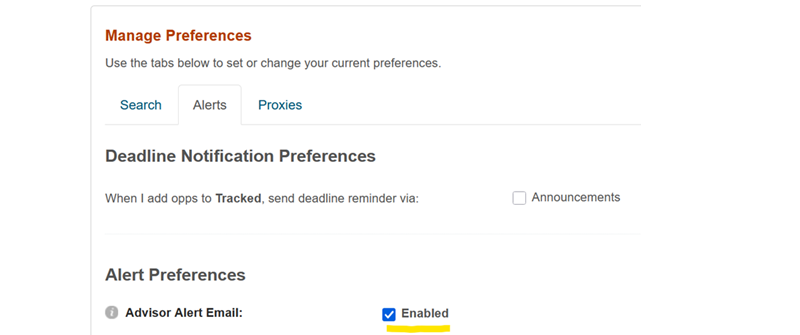
When you deactivate the Advisor Alert emails, you can still access the Advisor and the recommended opportunities on Pivot-RP's homepage (My Funding Opportunities > Advisor).
To reactivate the Advisor Alert emails, follow the same steps as to deactivate it and tick the box.
-
How to filter the Advisor Alert by career stage
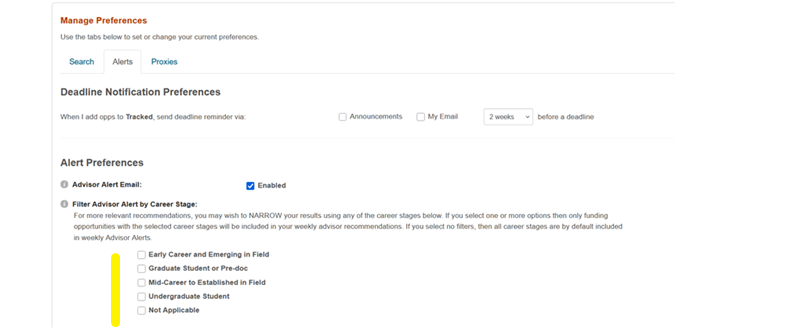
For more relevant recommendations, you may wish to narrow your results using the career stage filter. By default, if no career stages are ticked, they will all be included in the Advisor Alerts. If you tick one or more, then only opportunities with the selected career stages will be included.
To do so click on your name (top right corner) > My Preferences > Alerts tab.
Choose the relevant career stage(s).
-
How to select filters on the Advisor page
On the Advisor page you can select filters on the left side to narrow your results to only show opportunities that include the specific filter criteria selected (e.g. submission, funding, funder, applicant, career stage, keyword, country of funder, etc.).
To select a filter, click on the corresponding filter. A small "x" will then appear on the left of the chosen filter.
You can click and select several filters.
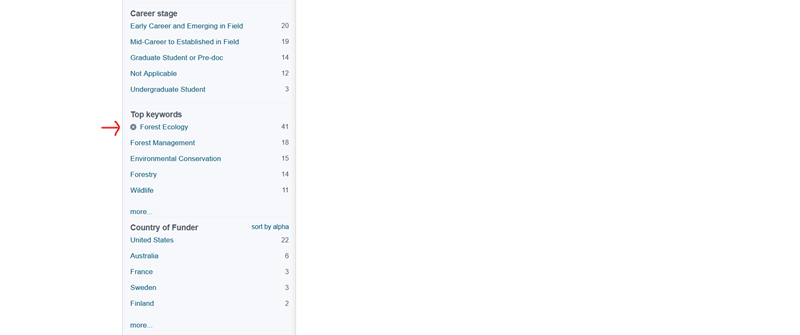
These filter preferences will automatically be saved and your next weekly Advisor Alert will then be limited by default with those filters.
From the Advisor page, you can always deselect filters to expand your results.